Automate Canvas LMS with Zapier

At Accellier we love building tools that make life easier for educators.
If you’re an educator or institute who uses Canvas LMS and you love using Zapier to automate your workflows, you’ll know there’s no native Zapier integration for Canvas. That’s why we built them ourselves.
We’ve developed a range of custom-build Zapier Triggers and Actions for Canvas LMS and here’s a tutorial on how you can automate student Assignment Submissions in Canvas.
Once you’ve followed the instructions below, watch the video to learn how to set up a Zap which triggers when students submit a new assignment.
Authenticating Zapier with Canvas LMS
First, get an invite to use Accellier Integrations for Canvas and Zapier. There’s a form below to request an invite.
As the OAuth2 flow is a bit tricky to follow, we are using the Access Token method to authenticate with Canvas. To do this…
-
-
- Generate a new Access Token in Account > Settings
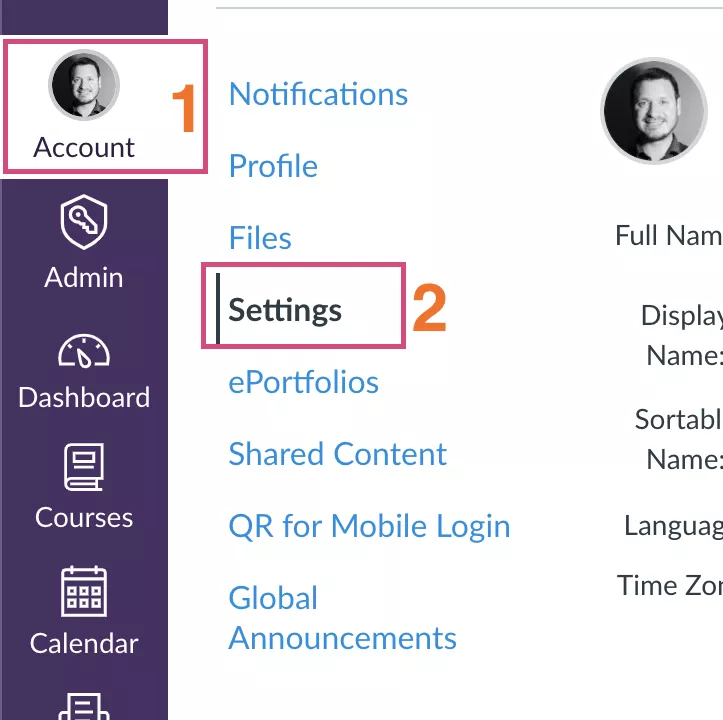
- Scroll down to underneath the Approved Integrations heading and click the New Access Token button
It is recommended to set an expiry date for better security, bearing in mind you will need to create a new one and enter it into Zapier as per these instructions to keep the Zap running after the expiry date. If you want to set and forget, leave expiry date blank. - Set up the Trigger in Zapier and connect a new account
- Copy the Token generated at step 2 (a long string of numbers and letters).Treat it like a password, and be mindful of trailing spaces. Paste the Token into Zapier in the authorisation window that pops up.
- Add in your Canvas host to this window too (e.g your-institute.instructure.com)
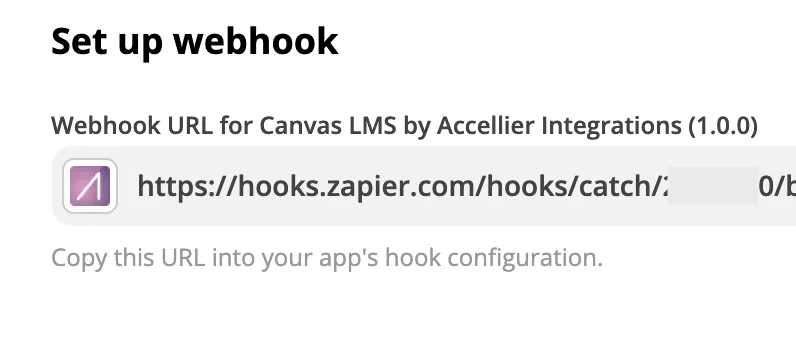
- You now need to use Canvas Data Services to tell it to trigger on new submissions. To begin with, copy the URL that Zapier gives you in the set up. It will look like this:
- Go to Admin > Data ServicesIf Data Services is not there, you will need to switch it on in Admin > Developer Keys – or ask your CSM.
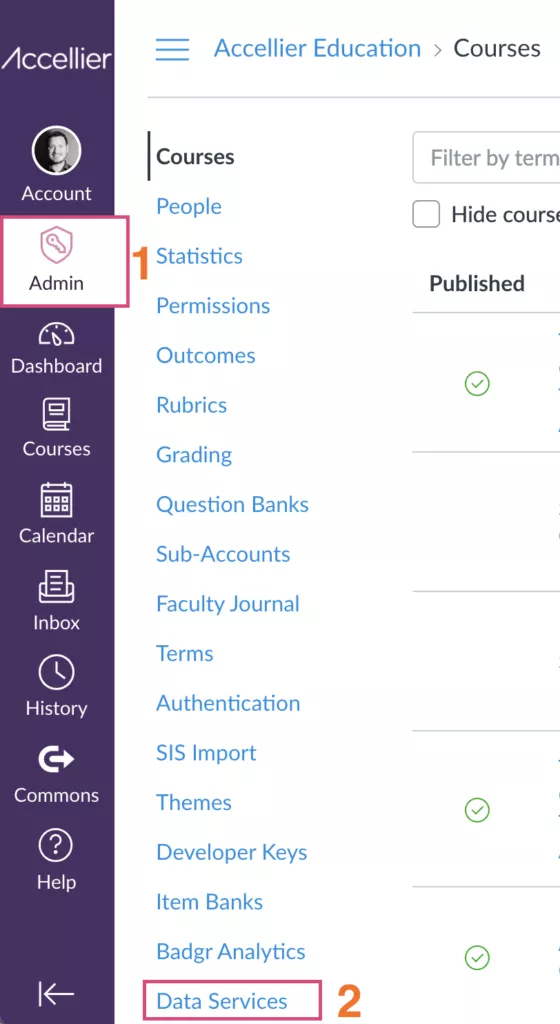
- In Data Services click “Add” (top right).
- Configure it as follows:
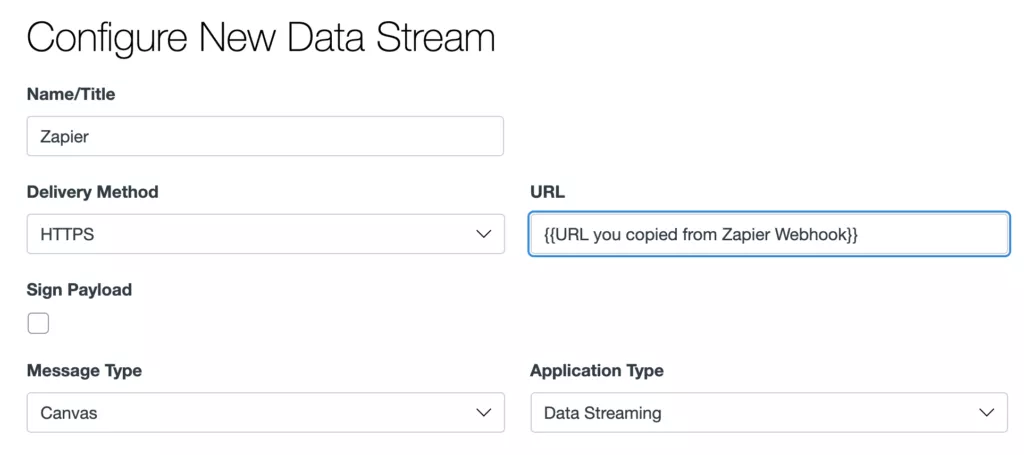
- For the subscription, select ONLY “submission_created” on the left column of the Submission item.
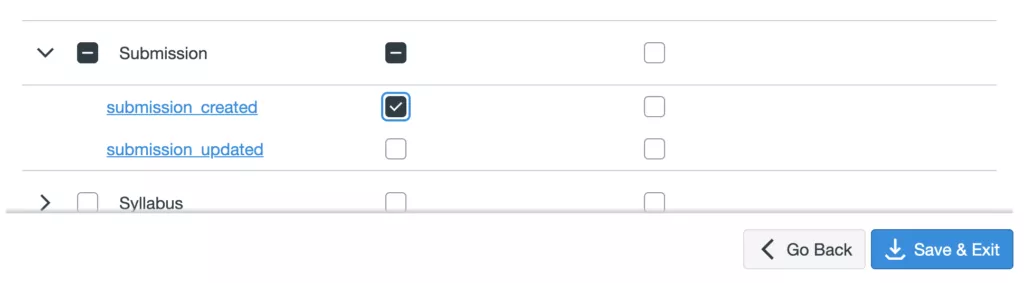
- Save and Exit, then continue setting up your Zap.
- Become a test student and submit a dummy assignment and test it in Zapier to see if it triggers.
- Generate a new Access Token in Account > Settings
-
And that’s it… continue setting up whatever Zap actions your imagination can conjure!
Are you interested in using Accellier’s Canvas – Zapier integration?
Case Studies
Accellier Success Stories
Developing Taronga’s Next Generation of Workplace Trainers
How Accellier helped senior zoo keepers from Taronga gain their Certificate IV in Training and Assessment.
Accellier and NSW National Parks
Accellier was approached to assist over 50 highly skilled professionals within the organisation achieve Certificate IV in Training and Assessment.
Department of Planning, Industry and EnvironmentAccellier Graduate Story: Marion
Marion, a successful Accellier Certificate IV in Training and Assessment graduate tells her story.
Qualified visual arts trainer video